-
Language
- Deutsch
- English

Overview
This section explains how to define and create a suitable structure for organizing company data in Nextcloud.
At the beginning it's important to specify how the company is planning to use Nextcloud. Further one has to decide which users are getting created and how they can form into groups.
It is useful to prepare a simple folder structure for several divisions aswell as the authorization allocation on group-level.
Concept
This example describes a concept for a company with 10 employees.
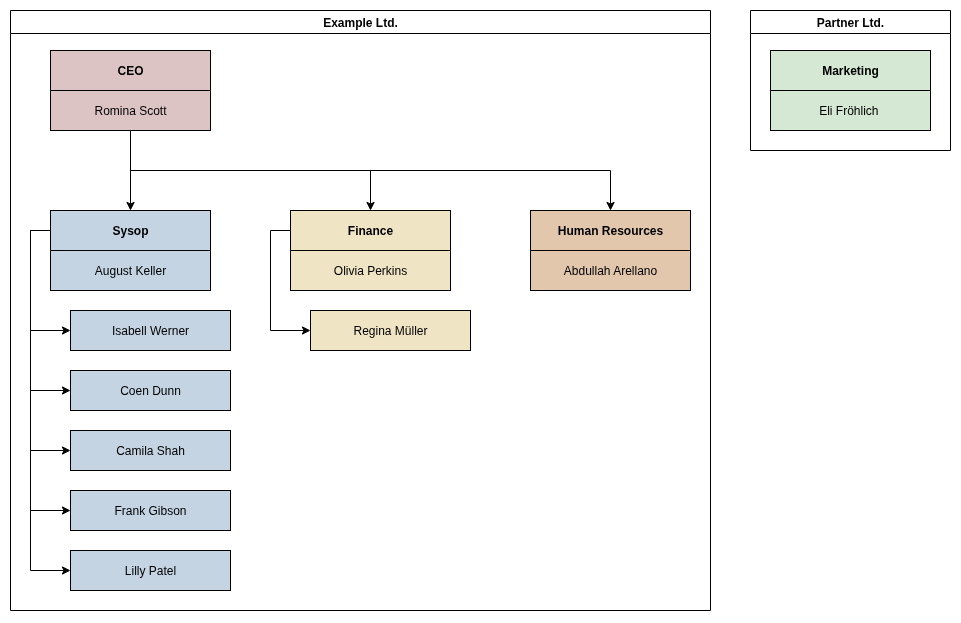
We call the company example Ltd..Additionally a external person from a company called Partner Ltd. is going to be included, to show how folders can be shared externally.
This is the organizational chart of example Ltd., including the marketing division from Partner Ltd..
Each employee gets their own account. The same naming convention as on the e-mail addresses is used.
This corresponds to the following scheme:
givenname.surname@division.company.ch
The following groups that are going to be created:
- CEO Teamlead (Sysop)
- Team (Sysop)
- Finance
- HR
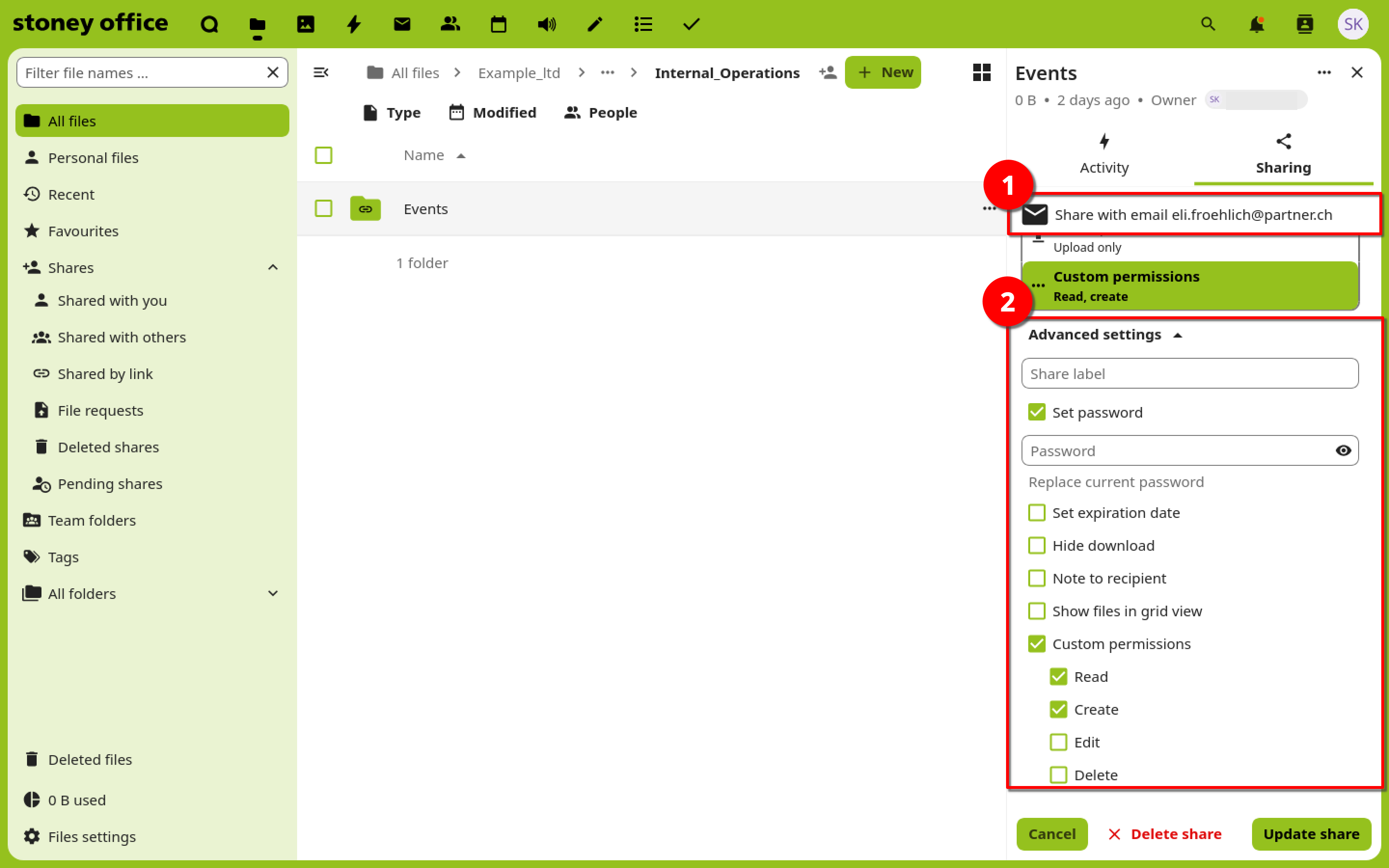
Only an e-mail address is needed to share a folder with external people. Therefore no account is created for Eli Fröhlich.
| Name | CEO | Teamlead (Sysop) | Team (Sysop) | Finance | HR | External | ||
| romina.scott@ceo.example.ch | ✔ | |||||||
| august.keller@teamlead.example.ch | ✔ | |||||||
| isabell.werner@sysop.example.ch | ✔ | |||||||
| coen.dunn@sysop.example.ch | ✔ | |||||||
| camila.shah@sysop.example.ch | ✔ | |||||||
| frank.gibson@sysop.example.ch | ✔ | |||||||
| lilly.patel@sysop.example.ch | ✔ | |||||||
| olivia.perkins@finance.example.ch | ✔ | |||||||
| regina.mueller@finance.example.ch | ✔ | |||||||
| abdullah.arellano@hr.example.ch | ✔ | |||||||
| eli.froehlich@partner.ch | ✔ |
If multiple organizations have access to the Nextcloud instance, it's advisable to create an additional Employees group to manage company-specific permissions.
In this example, the Employees group is not strictly necessary.
The folder structure is created based on the divisions:

The authorization allocation for each folder is set on group level:
| Folder | CEO | Teamlead (Sysop) | Team (Sysop) | Finance | HR | External |
| 1 Example_ltd | Membership, Management: Write, Share, Delete | Membership: Write, Share, Delete | Membership: Write, Share, Delete | Membership: Write, Share, Delete | Membership: Write, Share, Delete | |
| 2.1 Finance | Read | Read | Read, Write, Create, Delete, Share | |||
| 3.1 External_Operations | Read | Read | Read, Write, Create, Delete, Share | |||
| 3.2 Internal_Operations | Read | Read | Read, Write, Create, Delete, Share | |||
| 4.1 Products | Read | Read | Read | Read, Write, Create, Delete, Share | ||
| 4.2 Events | Read | Read | Read, Write, Create, Delete, Share | Read | Read, Create, Download | |
| 2.2 General | Read | Read, Write, Create, Delete, Share | Read | Read | Read | |
| 3.3 Licenses | Read | Read, Write, Create, Delete, Share | Read | Read | Read | |
| 3.4 Manuals | Read | Read, Write, Create, Delete, Share | Read, Write, Create, Share | Read | Read | |
| 4.3 Windows_Licenses | Read | Read, Write, Create, Delete, Share | Read | Read | Read | |
| 2.3 HR | Read | Read, Write, Create, Delete, Share | ||||
| 3.5 Strategy | Read | Read, Write, Create, Delete, Share | ||||
| 3.6 Employees | Read | Read, Write, Create, Delete, Share | ||||
| 4.4 Salary_Calculator | Read | Read, Write, Create, Delete, Share | ||||
| 4.5 Coen_Dunn | Read | Read, Write, Create | Read, Write, Create, Delete, Share | |||
| 4.6 Camila_Shah | Read | Read, Write, Create | Read, Write, Create, Delete, Share |
Special case: The following two folders are personnel folders about employees. Application documents and performance reviews are stored there. The employees should have reading access to their personnel folder. Therefore the authorization allocation is set on account level for this exception.
This results in:
4.5 Coen_Dunn: User coen.dunn(at)sysop.beispiel.ch recieves reading rights.
4.6 Camila_Shah: User camila.shah(at)sysop.beispiel.ch recieves reading rights.
Creation
The following chapters explain how to create the described concept.
To assign permissions with granular control, a team folder is used. All permissions (except in special cases) are assigned at the group level.
Creation - Groups
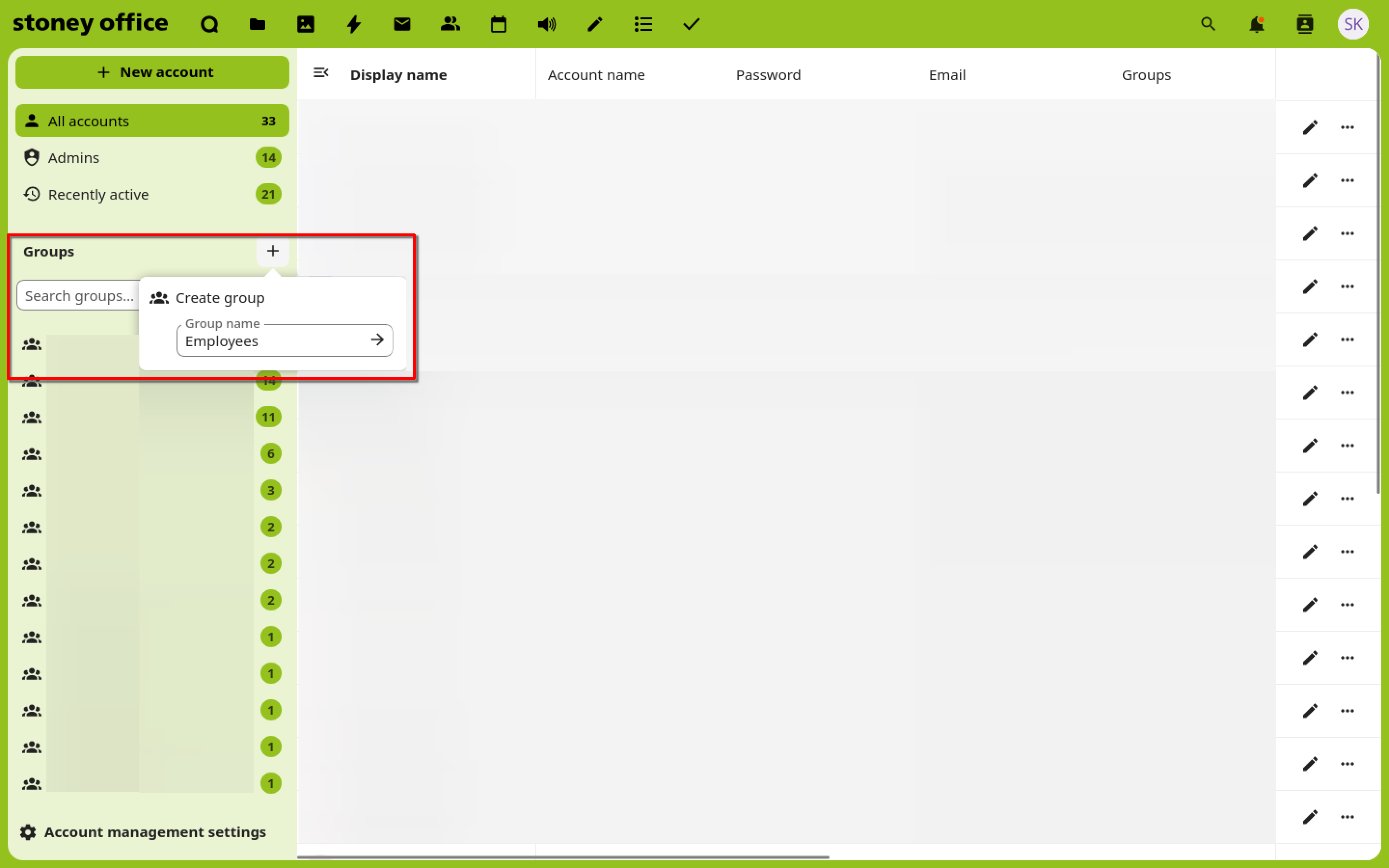
The settings can be accessed through clicking on the user profile in the top right corner. Groups are managed in the Accounts settings.
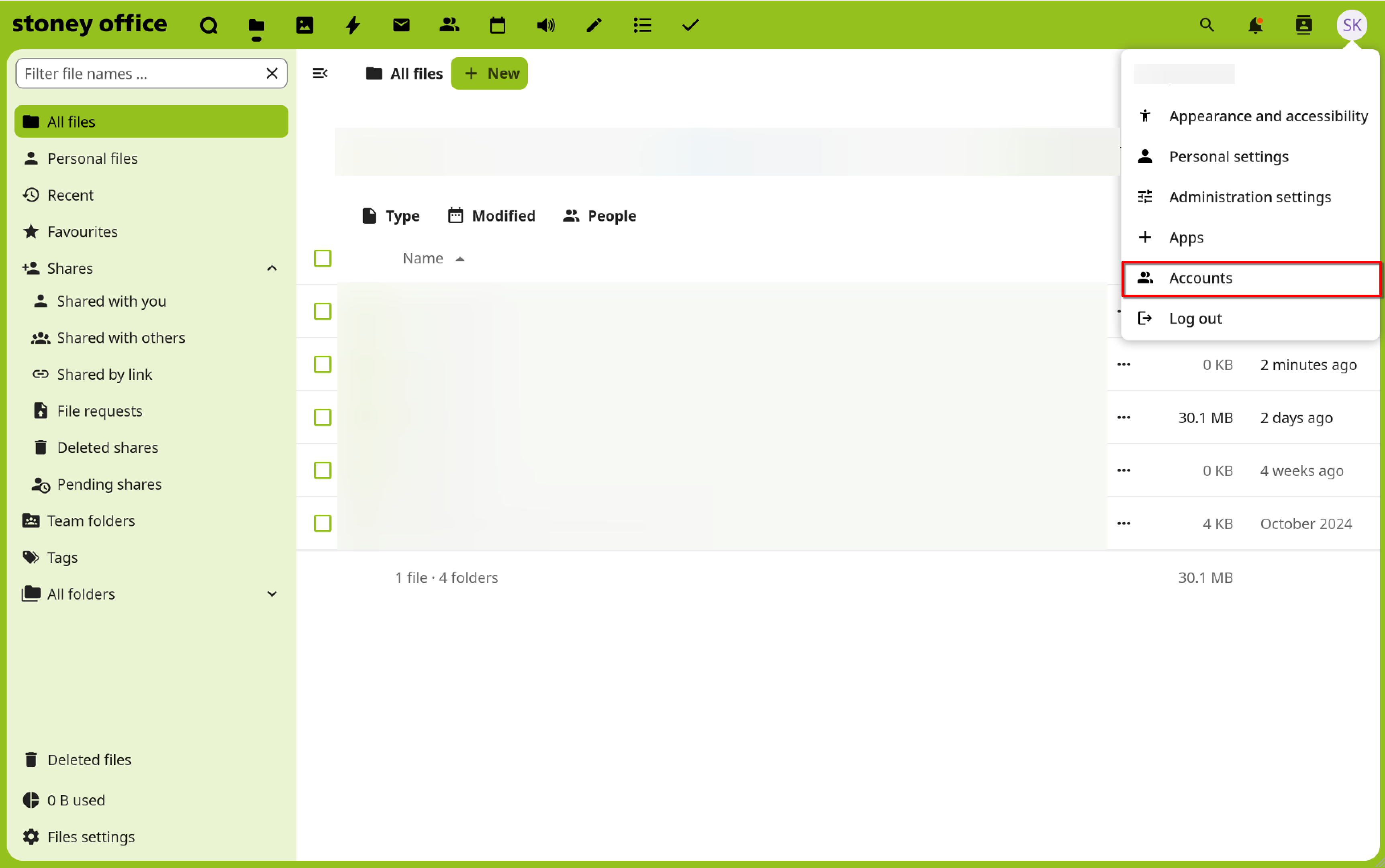
By clicking on the plus sign a new group gets created.
Creation - Accounts
User accounts are also managed in the Accounts settings.
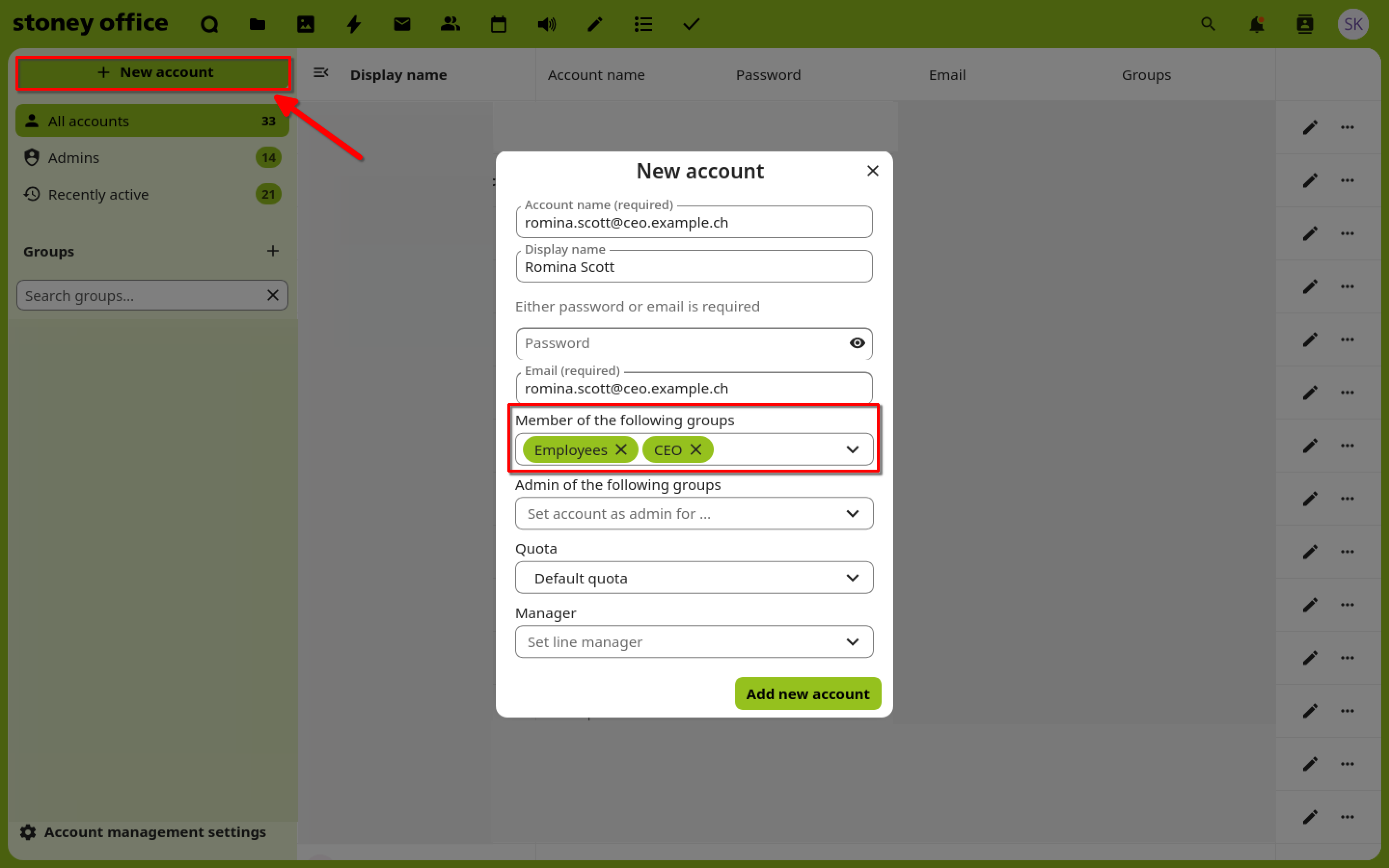
Clicking on New account opens a pop-up window where a new account can be created.
The following info is needed:
- Account name
- Password or E-Mail
It is recommended to assign groups right away. Thus access rights can be managed fully through groups.
Creation - Folder structure
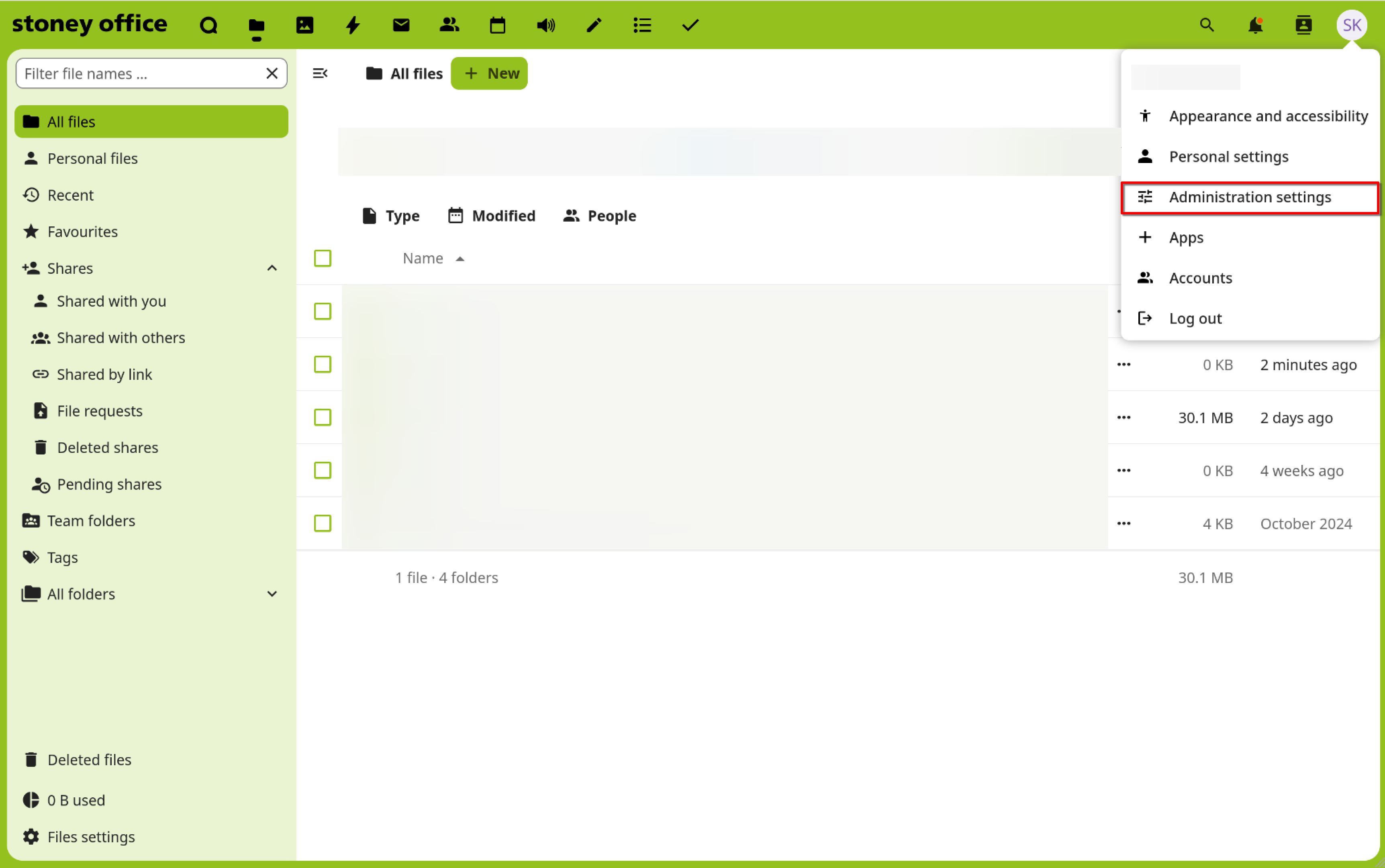
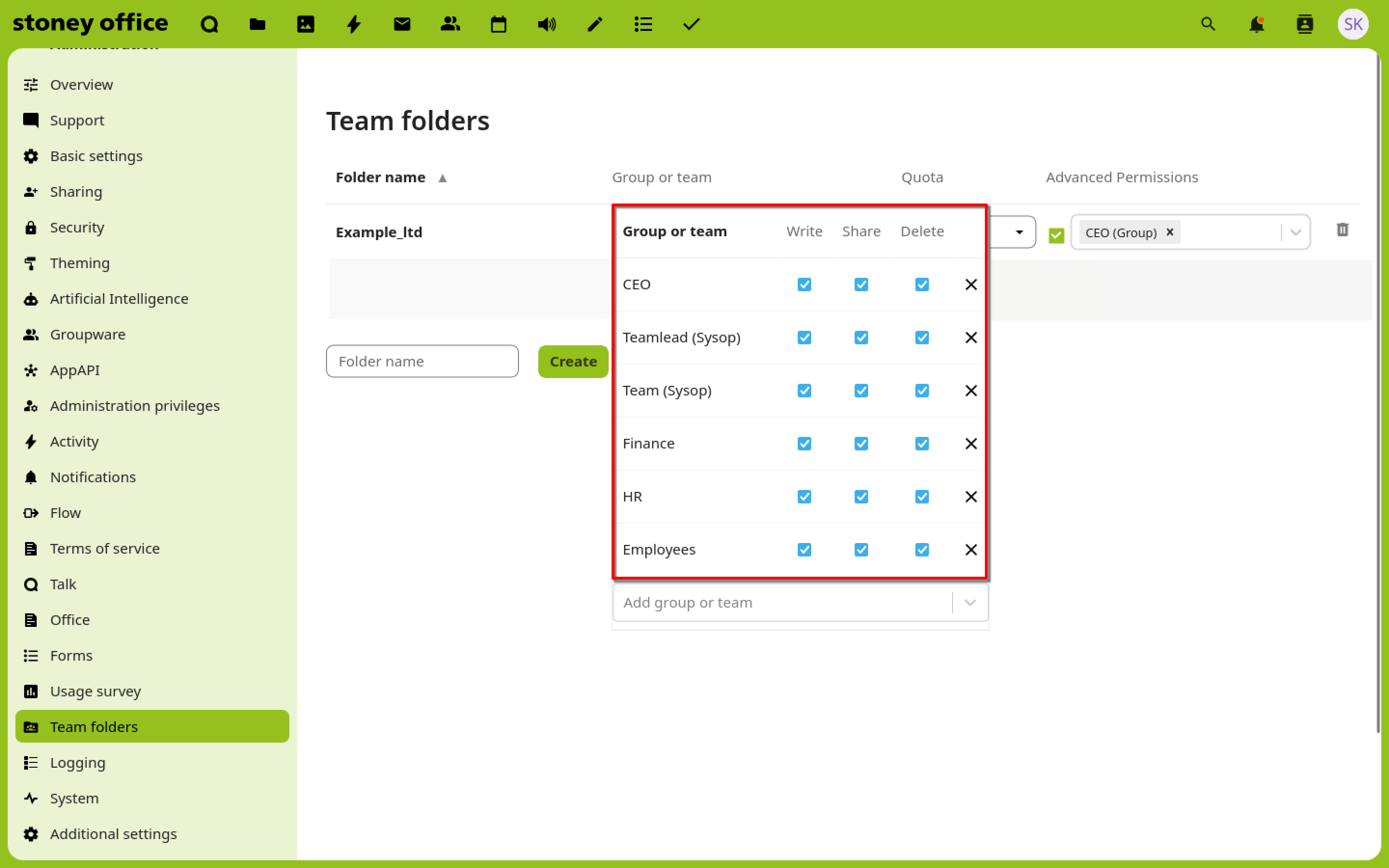
Team folders are managed through the Administration settings.
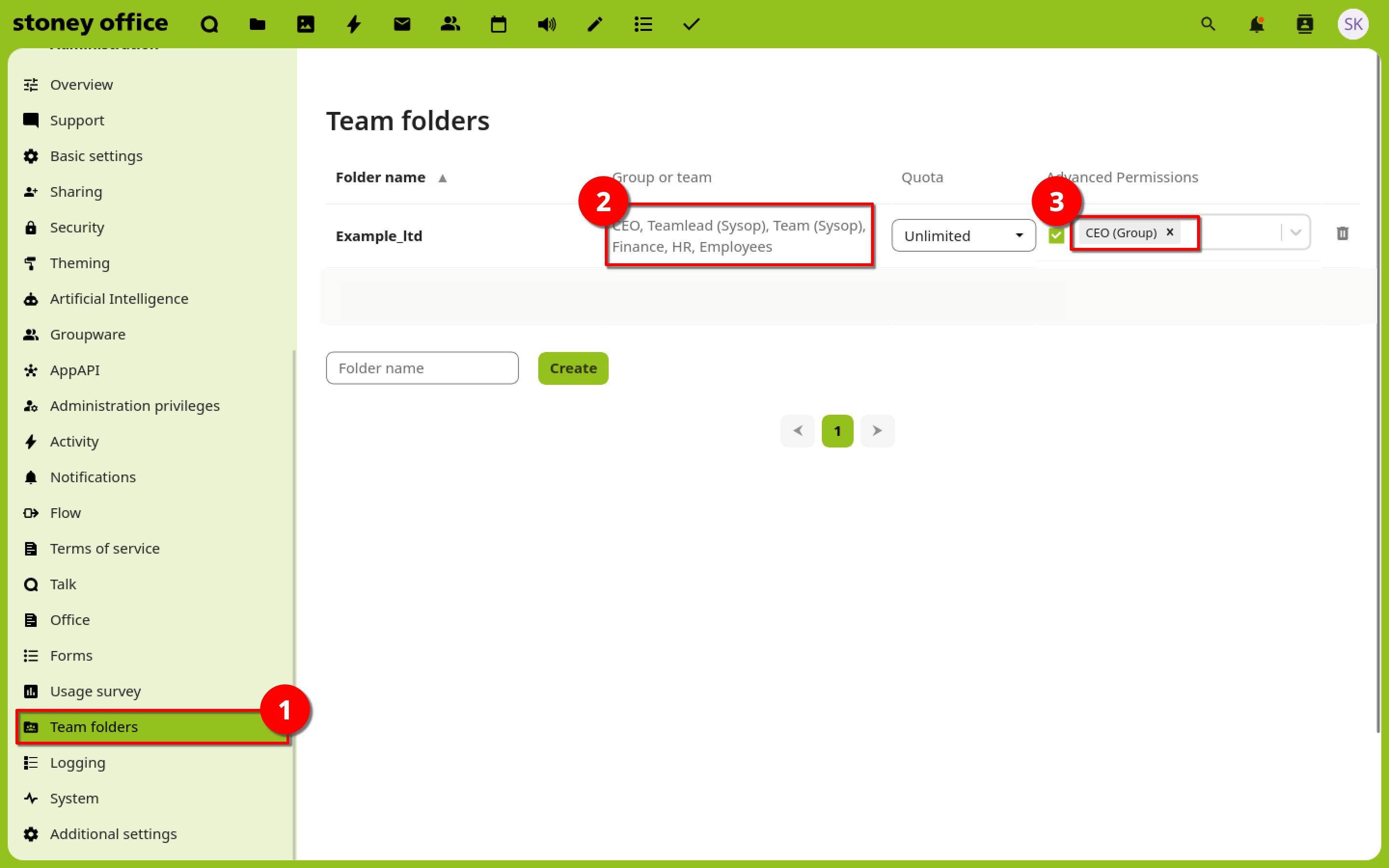
1: The section Team folder is located in the collumn on the left.
2: When creating a new team folder, groups can be selected that will have access to the folder structure.
3: At the same time, a group can also be selected to manage the team folder.
Group permissions can be precisely defined at the team folder level.
It is advisable to grant all permissions to all groups within the folder at this level. Access can be restricted later.
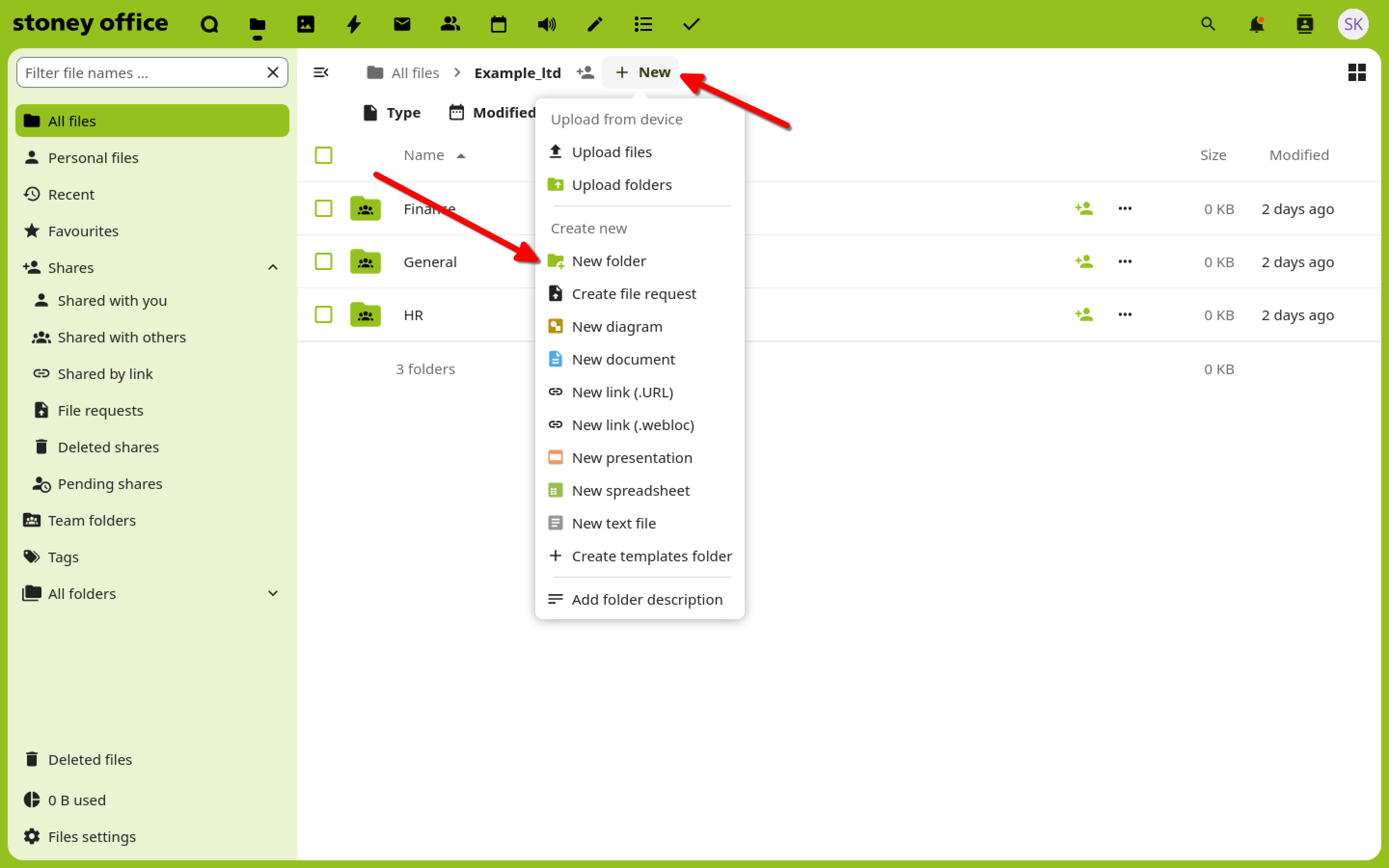
The team folder is now visible to all accounts in the assigned groups within the Files.
Any additional folders within the group folder can be created as regular folders using the New > New Folder option.
Creation - Authorization allocation
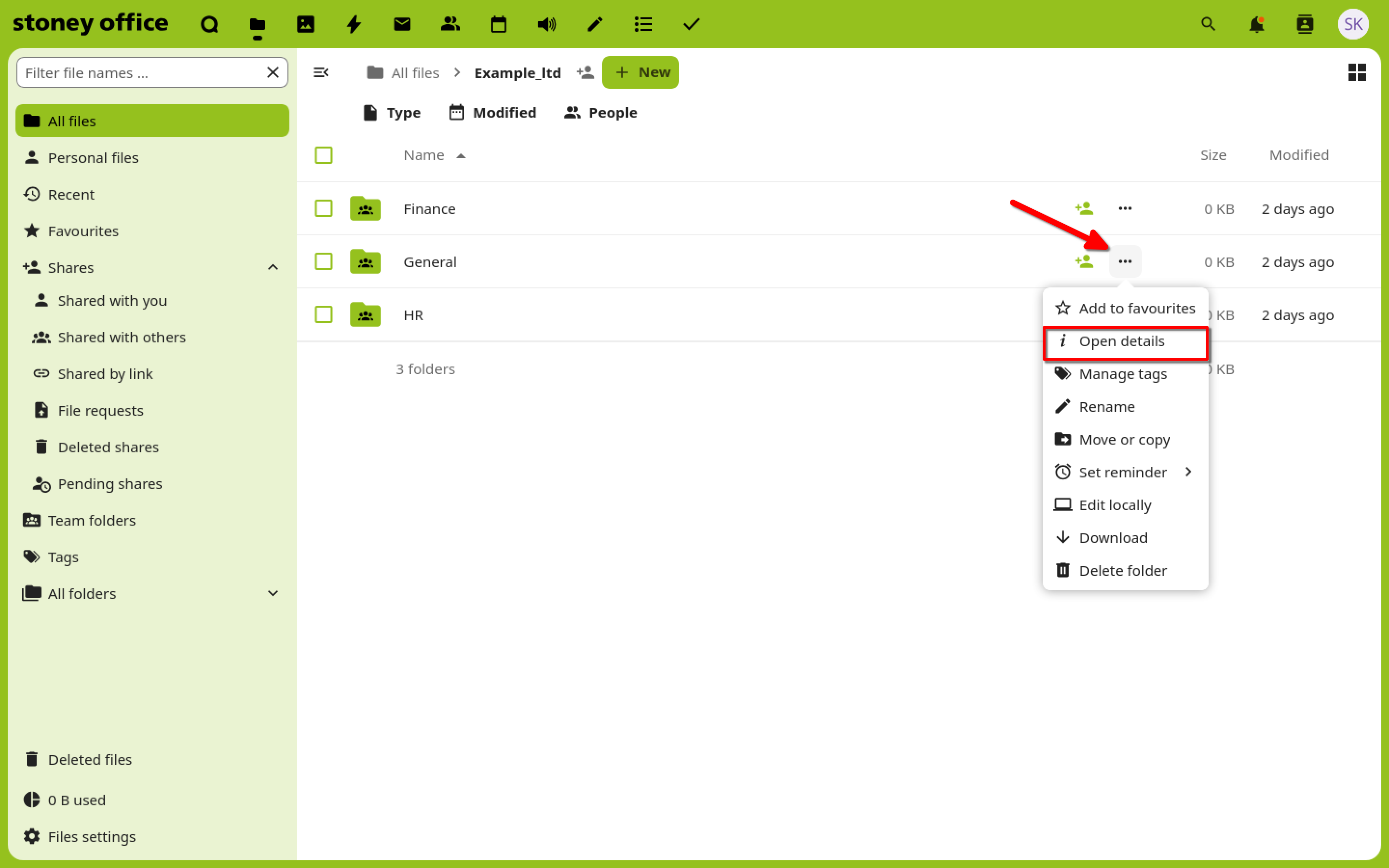
The authorization of a folder can be managed by accessing Open details through a rightclick on ... .
Advanced permission rules can be set in the section Related ressources.
For each group it can be decided, which permissions get approved, inherited, or withdrawn.
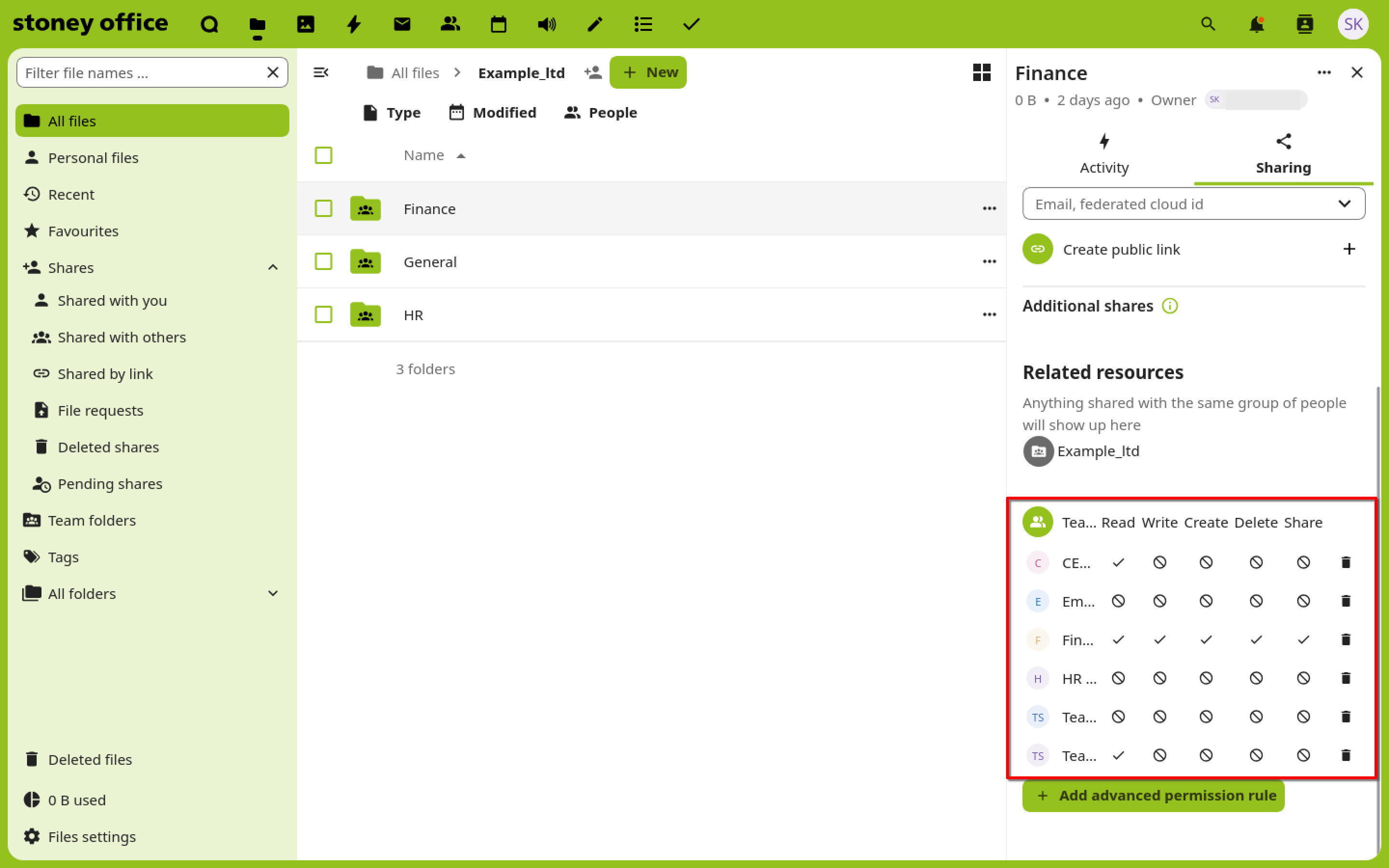
Important: Permissions from parent folders are automatically inherited by their subfolders.
If you want to restrict permissions, you can do so using Advanced Permission Rules.
If you want to set permissions in a subfolder to be more open than in its parent folder, it cannot be done by using Advanced Permission Rules.
In this case, the folder will be shared with the relevant group/person.
An Internal share will be created for this purpose in the Details section. The permissions can then be set from anew.
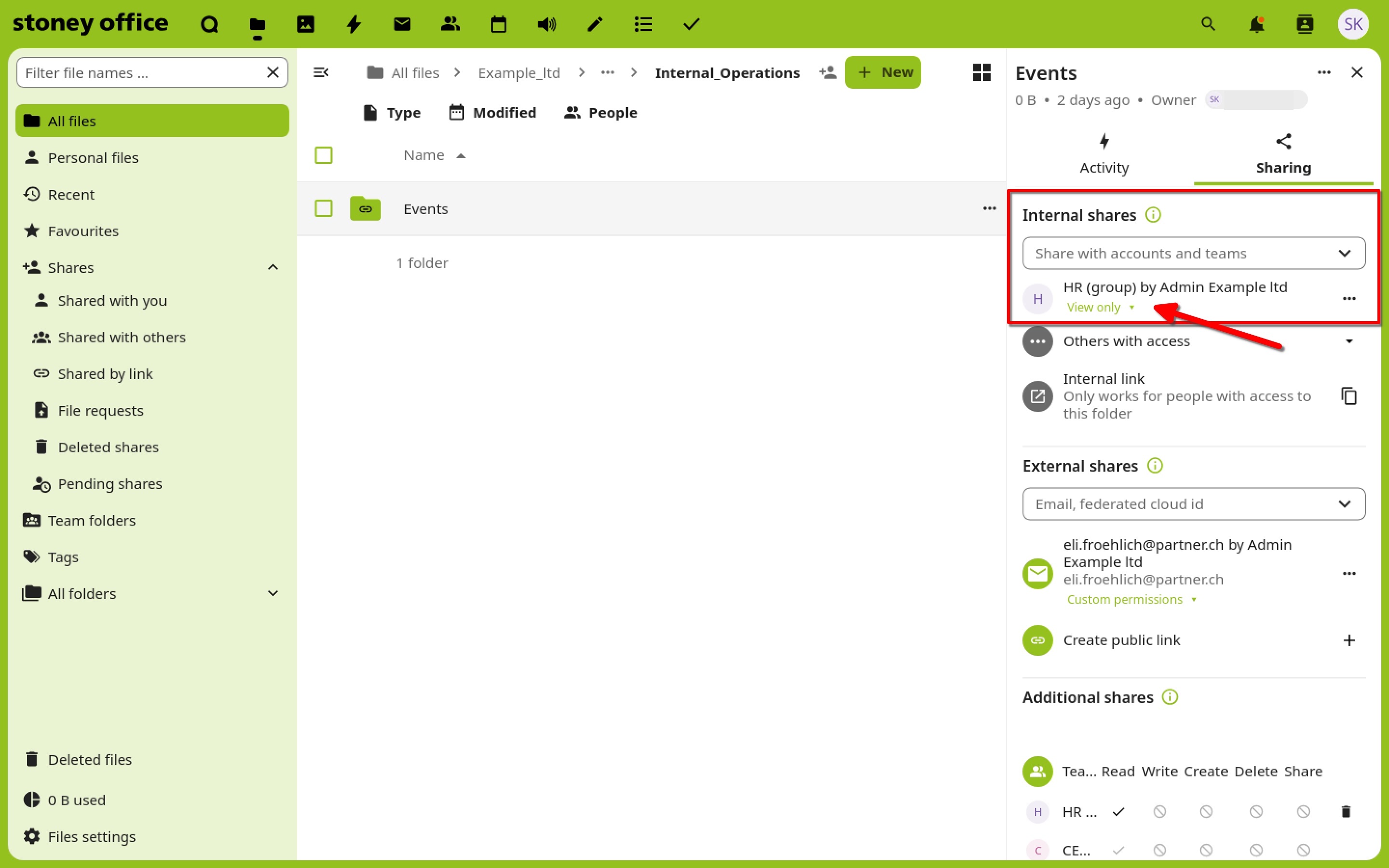
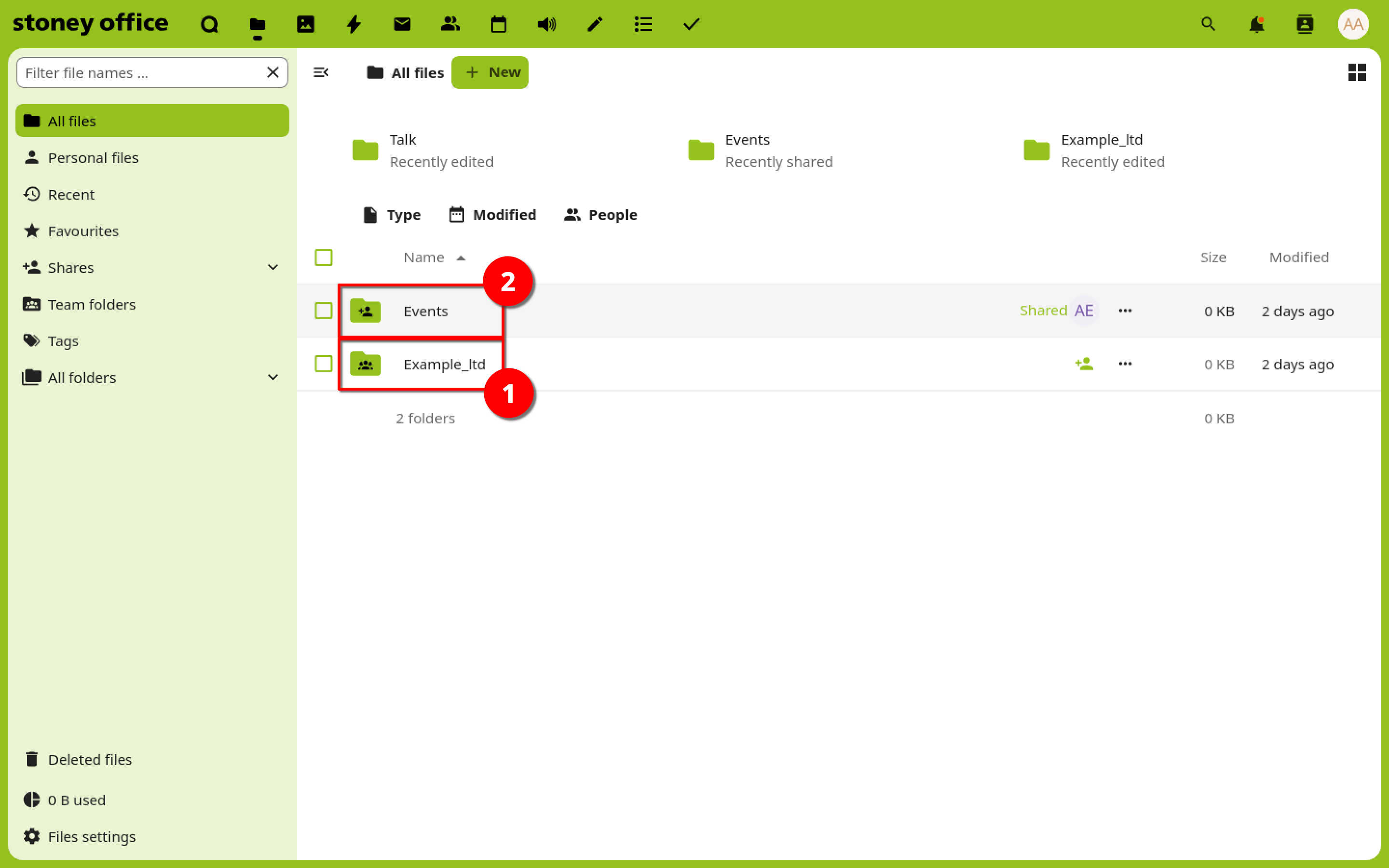
A user who has access to a folder through an Internal share sees the shared folder(2) in their files outside the team folder(1).